Game UI
A HUD that belongs to the scene: text, panels, bars, buttons, a typed field, images and touch joysticks pinned to the screen. Each element is a component on a scene entity, so it saves and loads with the scene, and the scene runtime draws it over the game.
component: canvas_element
module: awake:scene:canvas
Vulkan
WebGPU
Desktop · Android · iOS · Web
Game UI is scene data. For menus, editors and tools written in Kotlin, use AwakeKt Compose instead.
Add a HUD
Give each element its own entity with a canvas_element component. This HUD has a health bar in
the top-left corner, a score in the top-right corner and a jump button in the bottom-right corner.
Both forms below build the same components.
{
  "version": 1,
  "nodes": [
    {
      "name": "health_bar",
      "components": [
        {
          "component": "canvas_element",
          "kind": "Bar",
          "anchor": "TopLeft",
          "width": 240.0,
          "height": 16.0,
          "value": 0.75,
          "color": "#E5484D",
          "background": "#00000080"
        }
      ]
    },
    {
      "name": "score",
      "components": [
        {
          "component": "canvas_element",
          "kind": "Text",
          "anchor": "TopRight",
          "width": 160.0,
          "text": "Score 0"
        }
      ]
    },
    {
      "name": "jump_button",
      "components": [
        {
          "component": "canvas_element",
          "kind": "Button",
          "anchor": "BottomRight",
          "width": 120.0,
          "height": 56.0,
          "text": "Jump",
          "action": "jump",
          "background": "#2563EB"
        }
      ]
    }
  ]
}
world.scene {
    entity("health_bar") {
        configure(::CanvasElement) {
            kind = CanvasElementKind.Bar
            anchor = CanvasAnchor.TopLeft
            width = 240f
            height = 16f
            value = 0.75f
            color = "#E5484D"
            background = "#00000080"
        }
    }
    entity("score") {
        configure(::CanvasElement) {
            kind = CanvasElementKind.Text
            anchor = CanvasAnchor.TopRight
            width = 160f
            text = "Score 0"
        }
    }
    entity("jump_button") {
        configure(::CanvasElement) {
            kind = CanvasElementKind.Button
            anchor = CanvasAnchor.BottomRight
            width = 120f
            height = 56f
            text = "Jump"
            action = "jump"
            background = "#2563EB"
        }
    }
}
The scene DSL has no dedicated function for canvas elements. configure(::CanvasElement) { … }
attaches one and sets its fields.
There is no Studio tab: AwakeKt Studio has no inspector for canvas_element yet.
React to a button
A game system polls the button. consumePress() returns true once for each tap, then false
until the next tap.
class JumpButtonSystem(private val button: Entity, private val jump: () -> Unit) : System {
    override fun update(world: World, delta: Float) {
        if (world.get<CanvasElement>(button)?.consumePress() == true) jump()
    }
}
For a button the player holds down, read isHeld instead. For a joystick, read stickX and
stickY.
Without code, a blueprint on any node of the scene reacts to the button. Its On Button Pressed node names the button by its node's name, or leaves the name empty to listen to the button on its own node. Set Text and Set Visible change another element, named the same way:
On Button Pressed (name: Play) -> Set Text (name: Title, text: Loading) -> Set Visible (name: Window, visible: false)
The project needs the blueprint capability. A blueprint takes no tap from the button: its action,
or a system polling consumePress(), sees the tap as it would without the blueprint.
Properties
| Property | Type | Default | What it does |
|---|---|---|---|
kind |
Text · Panel · Bar · Button · TextField · Joystick · Image · View · LookArea |
Text |
What the element draws. A LookArea is a region where a swipe looks and a pinch zooms. |
anchor |
TopLeft · TopCenter · TopRight · CenterLeft · Center · CenterRight · BottomLeft · BottomCenter · BottomRight |
TopLeft |
The screen point the element is pinned to. |
offsetX |
number (dp) | 16 |
Moves the element inward from its anchor. From a right anchor it moves left. On a centred axis it moves right of centre, or left when negative. |
offsetY |
number (dp) | 16 |
Moves the element inward from its anchor. From a bottom anchor it moves up. On a centred axis it moves below centre, or above when negative. |
width |
number (dp) | 200 |
Element width. A joystick is a round pad of this width. |
height |
number (dp) | 40 |
Element height. |
text |
string | "" |
A Text element's content, a Button's label, or what is typed into a TextField. Typing writes it; a system writing it replaces the field's content, caret at the end. |
textKey |
string | "" |
A Text's or Button's words from the project's string tables, by key, in the player's language. Use it in place of text. See Show text in the player's language. |
textArgs |
object | {} |
Values for textKey's placeholders, by name, such as { "count": "3" }. |
fontSize |
number (sp) | 18 |
Size of text. |
font |
string | "" |
The font of text: a .ttf or .otf file from the project, or a built-in family. See Use a font. |
mask |
string | "" |
A TextField's password mask: one character drawn for each typed one. Empty shows the text. |
maxLength |
integer | 0 |
The most a TextField lets the player type; 0 for no limit. See Limit what is typed. |
maxLengthUnit |
Graphemes · CodePoints · Utf8Bytes |
Graphemes |
What maxLength counts. |
pressable |
boolean | false |
Lets an Image or Panel take a tap as a Button does. Without it, a tap passes through. |
textAlign |
one of the nine anchor points | none | Where the text sits in the element. None keeps a Text at its top-left and a Button's label centred. |
follow |
string | "" |
A node to follow on screen. See Follow a node. |
followOffset |
vector | {x: 0, y: 0, z: 0} |
A world-space offset from the followed node. |
followBounds |
boolean | false |
Cover the followed node's screen box instead of standing at its point. |
followOutset |
number | 0 |
With followBounds, how far the box reaches past the node's on each side, in dp. Negative pulls it in. |
followRules |
object | none | Culling, ranking, scale and fade by distance, and edge pinning for a follower. See Many followers. |
followArrow |
boolean | false |
Inside a follower pinned to the edge, the arrow that points to its target. |
layout |
object | none | Lay the children out in rows or columns. See Lay out children. |
grow |
number | 0 |
In a laid-out parent, this element's share of the leftover space. |
bind |
object | none | Game state the element shows without code. See Show game state. |
camera |
string | "" |
A View's camera node. See Show a 3D view. |
color |
#RRGGBB or #RRGGBBAA |
#FFFFFF |
Text colour, a Bar's fill, or a Joystick's knob. |
background |
#RRGGBB or #RRGGBBAA |
#00000000 |
Fill behind the element. A joystick's pad. |
value |
number, 0 to 1 | 1 |
A Bar's fill fraction. |
order |
integer | 0 |
Draw order. Lower values draw first, so higher ones sit on top. |
visible |
boolean | true |
Hidden elements are not drawn and take no taps. |
action |
string | "" |
Names what the element does for the game, such as move or jump. The game decides what each name means. |
doubleAction |
string | "" |
What a Button does when double-clicked, such as equipping an item; two presses within half a second. |
touchOnly |
boolean | false |
Draw the element only where touch controls are shown. |
safeArea |
boolean | true |
Keep the element clear of a notch, rounded corners or a home indicator. See Keep clear of a notch. |
style |
object | {} |
How the element looks beyond its colours: shape, border, gradient, shadow, images and button states. See Style an element. |
A running CanvasElement also has values that are not saved:
| Member | Type | What it gives |
|---|---|---|
consumePress() |
Boolean |
true once for each tap on a Button since the last call. |
consumePressAt() |
Vec2? |
Where that tap landed, in the element's own units from its top-left, whatever the canvas's scale, and on a rotated element the point on its picture as if unturned; then takes the tap as consumePress() does. null when there is none. A map picture, as a pressable Image, turns it into a place. |
presses |
Int |
How many times a Button has been tapped since it was made. Reading it takes no tap. |
isHeld |
Boolean |
Whether a Button is pressed right now. |
stickX, stickY |
Float, -1 to 1 |
A Joystick's deflection. Up is negative stickY, as on screen. Releasing re-centres it. |
cooldown, charges, enabled |
Float, Int, Boolean |
An action button's cooldown left (0 to 1), uses left (below 0 for none), and whether it can be pressed. See Action buttons. |
consumeDown(), consumeRelease(), consumeLongPress(), consumeReady() |
Boolean |
true once for each time an action button went down, was let go, was held long, or became usable again. |
heldSeconds |
Float |
How long an action button has been held. |
aiming, aimX, aimY, aimCancelling, aimTarget |
An aimed button's drag: whether it is aiming, its aim (-1 to 1, up negative), whether it is over the cancel zone, and what aimLock locked onto. See Drag to aim. |
|
consumeAimCancel() |
Boolean |
true once for each aimed shot let go over its cancel zone. |
consumeLook(), consumeZoom() |
Vec2, Float |
A LookArea's swipe since the last call, in dp times its sensitivity, and the factor its pinch spread by, 1 for none. |
aimLock |
CanvasAimLock? |
Set from code: locks an aim onto a target the game picks. |
focused |
Boolean |
Whether a TextField holds the keyboard. Set it true to focus the field, or false to free it; it reads back whatever a click, Enter, Escape, or anything else taking focus away leaves it at. |
consumeSubmit() |
String? |
The submitted line once after Enter submits a TextField since the last call, taken from the field's live state so a character typed the same frame is included; null otherwise. Submitting frees its focus. Escape frees focus without submitting. An Enter that only just focused the field, in the same frame a system granted it, does not also submit it. |
Action buttons
Give a Button button settings to make it an on-screen action button, as a skill, a reload or a
dash needs:
{ "component": "canvas_element", "kind": "Button", "anchor": "BottomRight", "width": 72, "height": 72,
  "text": "Dash", "action": "dash", "touchOnly": true,
  "button": { "trigger": "Down", "longPressSeconds": 0.6, "longPressAction": "dash_info", "releaseAction": "" },
  "bind": { "node": "Player", "cooldown": "dash.left", "cooldownMax": "dash.seconds", "charges": "dash.charges" },
  "style": { "cornerRadius": 36, "disabled": { "alpha": 0.3 } } }
triggerfiresactionon aTap, released over the button, or the moment it goesDown.- Held past
longPressSeconds, it reportsconsumeLongPress()and presseslongPressAction, and then the release is not also a tap. - Let go anywhere, it reports
consumeRelease()and pressesreleaseAction. cooldownSecondsgives the button a cooldown of its own: each time it fires,cooldownstarts at 1 and runs down to 0 over that many seconds, with no code. Leave it 0 for a cooldown the game owns.cooldown, from 1 just used to 0 ready, sweeps a shade over the button, andchargesof 0 or more show in a badge. While it is cooling down with no charge left, the button takes no press unlessblockWhileCoolingisfalse;consumeReady()istrueonce each time it becomes usable again.enabled: false, or abind.enabledfield that reads false, disables it: it takes no press, keeps the press from what is under it, and draws instyle.disabled, or dimmed.
Look area and button cluster
A LookArea is a region where one thumb's swipe turns the camera and two thumbs pinch to zoom, as
the right half of the screen does in many touch games:
{ "component": "canvas_element", "kind": "LookArea", "anchor": "TopRight", "offsetX": 0, "offsetY": 0,
  "width": 400, "height": 600, "touchOnly": true,
  "look": { "sensitivity": 1.2, "invertY": false, "pinchZoom": true, "zoomSensitivity": 1 } }
In a played project its swipe turns the scene's active camera rig and its pinch zooms it, unless
turnsCamera is false; an action naming an axis action gets the swipe, up positive, and
zoomAction gets the pinch as ln of its factor. From code, consumeLook() and consumeZoom() read
them. A look area takes up to two thumbs, so a thumb on a stick or a button is never taken from it.
A cluster places an element's children as a button cluster instead of a layout: the first, the
main button, on a pivot, and the rest on an arc around it, angles clockwise from the right:
{ "component": "canvas_element", "kind": "Panel", "anchor": "BottomRight", "width": 260, "height": 260,
  "cluster": { "pivotX": 0.7, "pivotY": 0.7, "radius": 110, "startAngle": 180, "spacing": 45 } }
Keep the element big enough to hold the arc: a child outside its parent's box is drawn but may not take a touch.
A mobile controls scene
This scene is a complete touch layout for a third-person scene: a floating stick on the left that
runs when pushed to its edge, a look area on the right half that turns the camera, and a cluster of a
jump button and two skills with cooldowns, the second dragged to aim at the ground. Touch controls
show once a finger touches the screen and hide once a controller or keyboard is used, all in the
MinimalFlat theme with an orange accent.
{
  "version": 1,
  "name": "mobile-controls",
  "nodes": [
    {
      "name": "Camera",
      "transform": { "position": { "x": 0.0, "y": 4.0, "z": 8.0 } },
      "components": [
        { "component": "camera", "primary": true },
        {
          "component": "camera_rig",
          "mode": "ThirdPerson",
          "target": "Player",
          "distance": 8.0,
          "pitch": -0.3,
          "offset": { "x": 0.0, "y": 1.5, "z": 0.0 }
        }
      ]
    },
    {
      "name": "Sun",
      "components": [ { "component": "light", "type": "Directional" } ]
    },
    {
      "name": "Floor",
      "transform": { "position": { "x": 0.0, "y": -0.1, "z": 0.0 } },
      "components": [
        { "component": "mesh_renderer", "mesh": "ground", "material": "lit-shadow" },
        { "component": "physics_body", "shape": { "type": "box", "halfExtents": { "x": 20.0, "y": 0.1, "z": 20.0 } } }
      ]
    },
    {
      "name": "Player",
      "transform": { "position": { "x": 0.0, "y": 1.0, "z": 0.0 } },
      "components": [
        { "component": "mesh_renderer", "mesh": "cube", "material": "lit-shadow" },
        { "component": "movement_control", "speed": 6.0 },
        { "component": "character_controller", "jumpSpeed": 5.0 }
      ]
    },
    {
      "name": "Controls",
      "components": [
        {
          "component": "input_actions",
          "actions": [
            { "type": "button", "name": "skill1" },
            { "type": "button", "name": "skill2" },
            { "type": "axis", "name": "aim" }
          ]
        },
        { "component": "canvas_scaler", "referenceWidth": 1280.0, "referenceHeight": 720.0 },
        {
          "component": "canvas_controls",
          "touchVisibility": "Auto",
          "theme": { "preset": "MinimalFlat", "colors": { "accent": "#FFB347" } }
        }
      ]
    },
    {
      "name": "Look",
      "components": [
        {
          "component": "canvas_element",
          "kind": "LookArea",
          "anchor": "TopRight",
          "offsetX": 0.0,
          "offsetY": 0.0,
          "width": 640.0,
          "height": 720.0,
          "touchOnly": true,
          "controlId": "look",
          "look": { "sensitivity": 1.0 }
        }
      ]
    },
    {
      "name": "Stick",
      "components": [
        {
          "component": "canvas_element",
          "kind": "Joystick",
          "anchor": "BottomLeft",
          "offsetX": 0.0,
          "offsetY": 0.0,
          "width": 480.0,
          "height": 400.0,
          "action": "move",
          "touchOnly": true,
          "controlId": "move",
          "joystick": {
            "mode": "Floating",
            "radius": 70.0,
            "restX": 0.35,
            "restY": 0.6,
            "deadZone": 0.1,
            "sprintThreshold": 0.9,
            "sprintAction": "run",
            "idleAlpha": 0.5,
            "idleDelay": 2.0
          }
        }
      ]
    },
    {
      "name": "Actions",
      "components": [
        {
          "component": "canvas_element",
          "kind": "Panel",
          "anchor": "BottomRight",
          "offsetX": 24.0,
          "offsetY": 24.0,
          "width": 300.0,
          "height": 300.0,
          "order": 1,
          "touchOnly": true,
          "cluster": { "pivotX": 0.72, "pivotY": 0.72, "radius": 130.0, "startAngle": 180.0, "spacing": 45.0 }
        }
      ],
      "children": [
        {
          "name": "Jump",
          "components": [
            {
              "component": "canvas_element",
              "kind": "Button",
              "width": 110.0,
              "height": 110.0,
              "text": "Jump",
              "action": "jump",
              "touchOnly": true,
              "controlId": "jump",
              "button": { "trigger": "Down" }
            }
          ]
        },
        {
          "name": "Skill 1",
          "components": [
            {
              "component": "canvas_element",
              "kind": "Button",
              "width": 80.0,
              "height": 80.0,
              "text": "1",
              "action": "skill1",
              "touchOnly": true,
              "controlId": "skill1",
              "button": { "cooldownSeconds": 3.0 }
            }
          ]
        },
        {
          "name": "Skill 2",
          "components": [
            {
              "component": "canvas_element",
              "kind": "Button",
              "width": 80.0,
              "height": 80.0,
              "text": "2",
              "action": "skill2",
              "touchOnly": true,
              "controlId": "skill2",
              "button": {
                "cooldownSeconds": 6.0,
                "aim": {
                  "mode": "Ground",
                  "radius": 140.0,
                  "aimAction": "aim",
                  "cancel": { "anchor": "TopCenter", "offsetY": 24.0, "width": 96.0, "height": 96.0 }
                }
              }
            }
          ]
        }
      ]
    }
  ]
}
skill1 and skill2 are the scene's own actions, so the game reads them with
actions.wasPressed("skill1"), and the second skill's aim with actions.axisX("aim") and
actions.axisY("aim") on the frame it fires.
Show touch controls by input
A scene's canvas_controls decides when its touchOnly elements show, for every control at once:
Auto shows them once a finger touches the screen and hides them once a controller, a key or the
mouse is used, switching live, so one build serves a phone, a tablet with a keyboard, and a desktop
with a controller. Until any is used it does what the host says. Always and Never override the
host. A control hidden mid-press lets go of its pointer, so a stick never stays deflected while it
cannot be seen. minTouchSize keeps small controls easy to hit: a button drawn smaller than it takes
a touch up to that size around its centre. SceneAppLifecycleRuntime.lastInputDevice says which
device the player last used.
Every stick, action button and look area follows only the pointers that landed on it first, so a thumb steering a stick, another pressing a button and a third turning the camera never take each other's touches.
Theme the controls
The kit owns how a control behaves, never how it looks. Every visual part is a slot: a stick's
base, knob, sprintRing and arrows; a button's background, icon, label, cooldown,
charges, aimCursor, aimRange and cancelZone; a look area's feedback. A scene's
canvas_controls.theme fills them for every control at once, and an element's own skin fills
them for that one:
{ "component": "canvas_controls", "touchVisibility": "Auto",
  "theme": {
    "preset": "Glass",
    "colors": { "accent": "#FFB347" },
    "skin": {
      "button": {
        "icon": { "size": 40, "style": { "image": { "path": "@dash" } } },
        "background": { "circle": true, "transitionSeconds": 0.15,
          "states": { "Pressed": { "scale": 0.92 }, "Ready": { "scale": 1.15 },
                      "Disabled": { "alpha": 0.35 } } } } },
    "images": { "dash": { "path": "ui/dash.png" } } } }
- A style is the same
stylean element has: colour, gradient, corner radius, border, shadow, opacity, andcirclefor a round part. - Images are its
image, a single picture, a nine-slice frame or an atlas region, a different one in any state, orframesplayed as a sprite animation. - Custom content is
custom, the name of a composable the host registered withSceneAppLifecycleRuntime.canvasSlotContent(orCanvasOverlay(slotContent = ...)), drawn in the slot's box and given the control and its state.
States drive the look: Idle, Pressed, Held, Disabled, CoolingDown, Ready (a short pulse
when a button is usable again), Aiming and Cancelling. Each state may change a slot's style,
scale, alpha, frames or hidden, faded in over transitionSeconds; a state a slot does not
change falls back to a broader one. colors and images are tokens a slot writes as @name, so
changing one restyles every control, and a game can ship a light, a dark and a high-contrast theme
and switch between them by setting CanvasControls.theme. The built-in presets, MinimalFlat,
Glass and Textured, are plain data to start from; Textured names controls/pad.png,
controls/knob.png, controls/button.png and controls/button-pressed.png, which a project
provides or replaces through images. An editor previews one state with previewState.
Players can scale, move and fade the controls too. Give each control a controlId, and set
CanvasControls.playerLayout: every touch control's scale and opacity, and each control's own
offsetX, offsetY, scale and opacity. CanvasPlayerLayout.toJson() and fromJson() save and
load it, and moved(id, dx, dy) follows a drag on a settings screen.
Drag to aim
Add aim to a button's settings and a drag away from it aims, then letting go fires action with
that aim, wherever the thumb is:
"button": { "aim": { "mode": "Ground", "radius": 120, "deadZone": 0.2, "aimAction": "aim",
                     "cancel": { "anchor": "TopCenter", "offsetY": 24, "width": 72, "height": 72 } } }
aimXandaimY, from -1 to 1 with up negative, are the drag from where the press landed as a share ofradius: a unitDirection, or as far out as the drag for aGroundtarget. A drag insidedeadZoneis no aim, so a quick tap fires at whatever the game picks.- While it is dragged,
aimingistrueand the canvas draws the reach as a ring, a cursor at the aim, and thecancelzone. Let go over the zone and nothing fires:consumeAimCancel()says so. - In a played project,
aimActionnames an axis action pushed with the aim, up being positive, while aiming and on the frameactionfires. - With
lockTarget, the element'saimLock, set from code, locks the aim onto a target the game picks, such as the one nearest the aimed line;aimTargetnames it.
Set cooldown, charges and enabled from code, or bind them to game state as above. Each action
button follows only the pointer that landed on it first, so two thumbs hold two buttons at once.
Style an element
An element's style is the saved form of an AwakeKt Compose Style, and it draws through the same
Modifier.styleable, so scene UI and Kotlin UI look alike. Every property is optional; one left
out keeps the element's own color and background. Colours are #RRGGBB or #RRGGBBAA, and
lengths are dp.
{ "component": "canvas_element", "kind": "Button", "text": "Start", "width": 160, "height": 44,
  "style": {
    "gradient": { "start": "#4A6FD8", "end": "#2A3F8A" },
    "cornerRadius": 10, "borderWidth": 1, "borderColor": "#FFFFFF40",
    "shadow": { "color": "#00000080", "offsetY": 3, "blur": 8 },
    "hovered": { "gradient": { "start": "#5A80EA", "end": "#34509C" } },
    "pressed": { "background": "#22346E", "textColor": "#C8D4FF" }
  } }
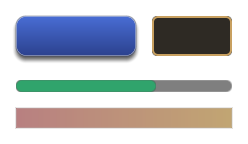
| Field | Type | What it does |
|---|---|---|
background |
colour | The fill, in place of the element's background. |
gradient |
{ start, end, horizontal } |
A gradient fill, top to bottom, or left to right when horizontal. It replaces the fill colour. |
image |
image | An Image's picture, a frame over the fill, or a Bar's track. |
fillImage |
image | A Bar's fill, cut at its value or squeezed into it, as fillImageMode says. |
fillImageMode |
Cut, Squeeze, Capped or Sweep |
How fillImage meets the value. Default Cut. |
cornerRadius |
number | Rounds the fill, gradient, border and shadow. A Bar's colour fill is rounded at both ends, a pill whose tip sits at its value. Images stay square. |
borderWidth, borderColor |
number, colour | A border inside the element's edge. It needs both. |
shadow |
{ color, offsetX, offsetY, blur, spread } |
A shadow behind the element, in its shape. Defaults: #00000080, 0, 2, 4, 0. |
textColor |
colour | The text of a Text or Button, in place of color. |
textShadow |
{ color, offsetX, offsetY } |
A hard shadow under the text. Defaults: #000000C0, 1, 1. |
textOutline |
{ color, width } |
An outline around every glyph, so text reads over any background. Defaults: #000000, 1. |
alpha |
number, 0 to 1 | The element's opacity, its children included. |
hovered, pressed |
state | What changes while the pointer is over a Button, and while it is held. |
A state may set background, gradient, image, borderColor, textColor and alpha; anything it
leaves out keeps the style's value. pressed applies over hovered. A button drawn from a sheet of
art changes its image region per state, and a state's image can name a file of its own, which
loadCanvasImages reads with the rest. A Joystick draws only its colours.
Draw images
An element's style holds its images. style.image is an Image's picture, the frame of a
Panel, Button or Text over its background, or a Bar's track. style.fillImage is a
Bar's fill, in place of color. Each names a PNG or JPEG in the project and says how it fills the
element. The image is cut into nine by four slice insets, in the image's pixels. The corners keep
their size, one dp per pixel, so a window frame stays crisp at any size. The edges stretch along
their length, and the centre stretches both ways.
[
  { "component": "canvas_element", "kind": "Panel", "width": 240, "height": 120,
    "style": { "image": { "path": "ui/window.png", "sliceLeft": 16, "sliceTop": 16, "sliceRight": 16,
                          "sliceBottom": 16, "repeatEdges": true, "pixelated": true } } },
  { "component": "canvas_element", "kind": "Bar", "width": 108, "height": 10, "value": 0.6,
    "style": { "fillImage": { "path": "ui/gauges.png", "regionY": 10, "regionHeight": 10,
                              "sliceLeft": 3, "sliceRight": 3 } } }
]
| Field | Type | Default | What it does |
|---|---|---|---|
path |
string | required | The image file, from the project's root. |
regionX, regionY |
integer | 0 |
The top-left pixel of the part of the image to use, such as one frame of a sheet. |
regionWidth, regionHeight |
integer | 0 |
The part's size. 0 reaches the image's right or bottom edge. |
sliceLeft, sliceTop, sliceRight, sliceBottom |
integer | 0 |
The corners' size in pixels. With none the whole image stretches. Slice only the left and right for a three-part strip, such as a gauge. |
repeatEdges |
boolean | false |
Tile the edges at their own size instead of stretching them, so a pattern keeps its spacing. |
repeatCenter |
boolean | false |
Tile the centre both ways instead of stretching it. |
tint |
#RRGGBB or #RRGGBBAA |
#FFFFFF |
Multiplies the image's colour and alpha. |
pixelated |
boolean | false |
Keep the pixels sharp when the image is scaled, for pixel art. |
pixelsPerDp |
number | 1 |
The image's pixels per dp. Art drawn at twice the size for high-density screens takes 2, so its corners and tiles stay the same size on screen. |
hollow |
boolean | false |
Leave the centre out, so a frame shows what is behind it. |
A Bar's fill image is laid out at the bar's full width and cut at its value, so the fill's
pattern stays where it is as the value changes and its right end cap shows only at 100%. Set
style.fillImageMode to "Squeeze" to draw the fill at value times the bar's width instead: both
end caps stay and only the middle stretches, as many games' gauges do. Below the two caps' combined
width they shrink together rather than overlap. "Capped" keeps both caps whole at every value
above 0: the filled width is the two caps plus value of the rest, so a nearly empty bar still
shows its rounded ends. "Sweep" fills the bar's box clockwise from 12 o'clock, as a cooldown does.
Corners too big for the element shrink together. An
element whose image did not load, or whose region does not fit in it, draws without it.
When a project is played with awake:project:runtime, loadProject reads every image the scene's
canvas names, and the runtime draws them. If your app runs its own Compose host, pass the decoded
images yourself: SceneCanvas(world, images = loadCanvasImages(scene, files)).
Use a font
A Text, TextField or Button draws its words in Roboto unless its font names another. A value
ending in .ttf or .otf is a TrueType or OpenType file from the project's root. Any other value is
a built-in family: default is Roboto, and bitmap is a fixed-pitch pixel font.
{ "component": "canvas_element", "text": "Harbor Town", "fontSize": 32, "font": "fonts/title.ttf" }
loadProject loads each file once, while the scene loads, with the glyphs of printable ASCII and
• · … – — × −; any other character draws as ?. A file that cannot be read, or is not a font
Awake reads, such as a collection or a WOFF file, is logged once, and its elements draw in the
default font. A host with no renderer reads no font. If your app runs its own Compose host, pass the
fonts yourself: SceneCanvas(world, fonts = loadCanvasFonts(scene, files)).
Put elements inside others
An element whose node sits below another element's node in the scene is drawn inside that element.
Its anchor and offsets place it against the parent's box instead of the screen, and it draws over
the parent's own content. Move the parent and its children move with it; hide the parent and they
are hidden too. Plain nodes in between, such as a group, are passed through: the nearest element
above is the parent.
{ "name": "Status", "components": [ { "component": "canvas_element", "kind": "Panel",
    "offsetX": 8, "offsetY": 8, "width": 220, "height": 112,
    "style": { "image": { "path": "ui/status.png", "pixelated": true } } } ],
  "children": [
    { "name": "HP", "components": [ { "component": "canvas_element", "kind": "Bar",
        "offsetX": 96, "offsetY": 4, "width": 108, "height": 10, "value": 0.8, "color": "#E5484D" } ] }
  ] }
A child is laid out within its parent, so one that would stick out past the parent's edge is narrowed to fit.
Show game state
An element's bind reads the components of a node each frame, so a health bar or a score follows
the game without code. A field is component.field: the component's name in the scene document,
then its field, with dots for a field inside another. A game's own components bind the same way
once its capability registers them.
[
  { "component": "canvas_element", "kind": "Bar", "width": 120, "height": 12, "color": "#E5484D",
    "bind": { "node": "Player", "value": "health.current", "max": "health.max" } },
  { "component": "canvas_element", "text": "", "textAlign": "Center", "width": 120, "height": 12,
    "bind": { "node": "Player", "text": "HP {health.current}/{health.max}" } }
]
| Field | What it does |
|---|---|
node |
The name of the node whose components are read. |
value |
A Bar's or Sweep's fill: this field, divided by max. A Stepper's number: the field as it is. |
max |
A field, or a number such as "100". Left out, value is already a share from 0 to 1. |
text |
The words of a Text or Button, each {component.field} replaced by its value. A whole number shows exactly, however large, and any other number to one decimal place. A format after a colon, such as {purse.gold:n0}, sets how a number is written. |
textArgs |
A textKey's arguments read from fields: each name to its component.field, such as { "count": "inventory.count" }. See Show text in the player's language. |
cooldown |
An action button's cooldown left, a share from 0 (ready) to 1, or divided by cooldownMax, such as seconds left over seconds in all. See Action buttons. |
cooldownMax |
A field, or a number, cooldown is a share of. |
charges |
An action button's uses left, a whole number shown in a badge. |
enabled |
Whether an action button can be pressed: true or a number above 0. |
Gauges and steppers
A Bar is a progress bar. With no bar settings it fills across from the left, as it always has.
Its bar settings make it fill another way, trail a drop, split into blocks, or show its value:
[
  { "component": "canvas_element", "kind": "Bar", "width": 160, "height": 16, "color": "#30A46C",
    "fontSize": 12, "bind": { "node": "Player", "value": "health.current", "max": "health.max",
                              "text": "{health.current}/{health.max}" },
    "bar": { "track": "#FFFFFF20", "trailColor": "#E5484D", "label": true } },
  { "component": "canvas_element", "kind": "Bar", "width": 160, "height": 8, "color": "#F5D90A",
    "bind": { "node": "Player", "value": "stamina.current", "max": "stamina.max" },
    "bar": { "segments": 5 } }
]
bar field |
Default | What it does |
|---|---|---|
direction |
LeftToRight |
LeftToRight, RightToLeft, BottomToTop, TopToBottom, or Radial, around the element's centre clockwise from 12 o'clock. |
thickness |
0 |
A radial bar's ring width in dp; 0 fills a pie. |
track |
none | The colour of the part not yet filled, in the bar's shape. |
trailColor |
none | A second fill behind the first, in this colour. When the value drops it holds for trailDelay seconds (0.5), then drains at trailSpeed (1.5) of the bar a second; a rise moves it at once. |
segments, segmentGap |
0, 2 |
The bar as this many blocks, segmentGap dp apart, filled in turn. |
ticks, tickColor |
0, #00000080 |
Marks dividing the bar into this many equal parts. |
label |
false |
Shows the bar's text, textKey or bind.text centred on it, or else its value as a percentage, in white or the style's textColor. |
A fillImage still fills a bar that has settings, from the edge its direction names. With
style.fillImageMode Capped, its end caps stay whole at every value.
A Sweep fills its value of a full turn, for a cooldown, a timer or a charge. It draws in its
color, or its style.fillImage cut to the sweep, over its background. Its sweep settings say
how: startAngle in degrees clockwise from 12 o'clock (0), clockwise (true), a mask the pie
is cut to (Box, rounded by the style's cornerRadius, Circle, Pill or CutCorner), a ring
thickness in dp (0 for a pie), and a track colour for what is not yet swept. An action
button's cooldown draws the same sweep.
A Stepper holds a number between minus and plus buttons, such as a quantity to buy. Its stepper
settings give the value it starts at, min, max (0, 100), step (1), the decimals it
shows, and how a held button repeats: after repeatDelay seconds (0.4), every repeatInterval
(0.08). A click on it gives it the keyboard: Up and Down, or Left and Right, step it, Page Up and
Page Down take ten steps, and Home and End jump to min and max. Game code polls
consumeChange() and reads number, and calls stepBy(button) with a controller's button, so the
pad steps it too. A bound bind.value sets the number from a field every frame, so the game writes
the player's change back to the field.
Number formats
A format is a letter and a digit after a colon: the letter picks the style and the digit is the places after the decimal point.
| Text | Shows 1234567.891 as |
|---|---|
{purse.gold:n0} |
1,234,568, the digits in groups of three |
{purse.gold:n2} |
1,234,567.89 |
{purse.gold:f1} |
1234567.9, the digits alone |
{purse.share:p0} |
a fraction as a percentage: 0.456 shows as 46% |
A value rounds half away from zero, as it reads in decimal. A whole number keeps every digit, where
a Float would lose its last ones above 16,777,216. Digits group with , and the point is
., whatever the player's language; write the text yourself where that matters. A field that is not
a number shows as it is. A format that is not one of these, such as {purse.gold:int}, leaves its
placeholder as written, and scene validation reports it.
While a binding reads nothing, because no node has the name or its component has no such field, the
element shows its own value and text, and the log says so once. A Bar does the same for a value
that is not a finite number and for a max that is not above 0; a text shows such a value as it is,
NaN or Infinity.
Show text in the player's language
A Text or Button with a textKey shows that key's text from the project's string tables,
strings/<locale>.json, in the player's language, and changes when the game switches language,
with no reload. A played project loads its tables itself; Localization
has the tables, the locale switch and the message syntax.
[
  { "component": "canvas_element", "textKey": "hud.greeting", "textArgs": { "name": "Harbor Town" } },
  { "component": "canvas_element", "textKey": "hud.items", "offsetY": 60,
    "bind": { "node": "Player", "textArgs": { "count": "inventory.count" } } }
]
textArgs holds values the scene fixes. A value the game sets while it runs, such as a player's
name or a count, comes from a component field through bind's textArgs, read each frame, and
takes the place of a textArgs value of the same name; while the field reads nothing, the scene's
own value shows. A field's value goes in as it is, so {count, plural, one {# item} other {# items}}
reads a number field as a number, and a name holding { shows as typed. A system can also set the
live element's textKey and textArgs from code.
A key no table has shows as the key itself and is logged once. Set textKey or text, not both;
scene validation reports an element with both, a textKey on a kind with no words, and textArgs
with no textKey.
Lay out children
A parent with a layout places its children itself, as a CSS flexbox does: an action bar of slots,
a strip of buff icons that wraps, a party list. Each child keeps its width and height, ignores
its anchor and offsets, and runs in its order. Add or remove children at run time and the rest
move to make room.
{ "name": "ActionBar", "components": [ { "component": "canvas_element", "kind": "Panel",
    "anchor": "BottomCenter", "offsetY": 12, "width": 364, "height": 40,
    "layout": { "direction": "Row", "gap": 4, "padding": 4, "align": "Center" } } ],
  "children": [
    { "name": "Slot1", "components": [ { "component": "canvas_element", "kind": "Image", "order": 0,
        "width": 32, "height": 32, "style": { "image": { "path": "ui/slot.png", "pixelated": true } } } ] }
  ] }
| Field | Values | Default | What it does |
|---|---|---|---|
direction |
Row · RowReverse · Column · ColumnReverse |
Row |
The axis the children run along, and which way. |
wrap |
boolean | false |
Start a new line for children that do not fit. Wrapped lines stay packed at the start. |
gap |
number (dp) | 0 |
The space between children, and between lines. |
padding |
number (dp) | 0 |
The space between the parent's edge and its children. |
justify |
Start · Center · End · SpaceBetween · SpaceAround · SpaceEvenly |
Start |
How a line spreads its leftover space. |
align |
Start · Center · End · Stretch |
Start |
Where children sit across the line. A single line spans the whole parent. |
A child's grow gives it a share of its line's leftover space, so one slot can fill the rest of a
row. A child keeps its size even when the line is too short for it, so children that do not fit, or
padding wider than the parent, spill past its edge; nothing clips them. A child that follows a node
stands on its node instead of in the line. A parent without a layout anchors its children as
before.
Follow a node
An element with a follow stands where that node is drawn and moves with it: a name over a
character, a health bar over an enemy. Its anchor is the point of the element that sits on the
node's screen position, and offsetX and offsetY nudge it inward from there, as they do from a
screen edge; followOffset moves the point in the world first, such as two metres up to clear a
head. It hides while the node is behind the camera, and when no node has that name; when several
share it, the first is followed. Unlike at a screen edge, a negative offset moves the element outward
from the point.
{ "component": "canvas_element", "text": "Harbor Guard", "follow": "Guard",
  "followOffset": { "x": 0, "y": 2.2, "z": 0 }, "anchor": "BottomCenter", "offsetX": 0, "offsetY": 0,
  "width": 120, "height": 18, "textAlign": "Center",
  "style": { "textOutline": { "color": "#000000", "width": 1 } } }
With followBounds, the element instead covers the screen rectangle around the node's meshes and
everything under it, whatever its own size. Give it children anchored to its corners, and a marker
frames whatever is selected at any distance. followOutset grows the box on every side, so corner
pieces anchored at offset 0 sit that far outside the node. The box is the meshes' resting shape, so it does not
follow an animated character's limbs; a node with no mesh bounds falls back to its point.
A follower is placed against the screen wherever it sits in the scene, so it can live on a child of
the character it follows. The runtime projects through the camera it draws with; a host that draws
SceneCanvas itself passes the runtime's, canvasProjector(world), or a CanvasProjector of its
own, which reports points in the window's pixels. A canvas drawn over part of the window, such as an
editor's game view, still lands on what it follows.
Many followers
A scene with a name plate over every character needs to draw only the plates that matter. An element's
followRules says how its follower behaves in a crowd, and a canvas_follow_limit says how many of
a group are drawn at once. Each follower is projected once a frame, and one that is left out costs no
drawing.
- Culling. A follower whose box is wholly off the screen is left out (
cullOffScreen, on by default), as is one behind the camera, judged by its depth along the camera's view so it holds on every backend.maxDistancehides it farther than that from the camera, andocclusionhides it while something stands between the camera and its point; see Occlusion. - Priority and a cap. A
canvas_follow_limitwith amaxkeeps that many of itsgroup, byrankBy: the nearest, the highestfollowRules.priority, or the highestfollowScoregame code sets each frame. The rest are left out until they rank again. - Scale and fade.
scaleandfadeare curves by distance:pointsofatandvalue, straight between them. A plate can shrink to half its size at 50 metres and fade out by 80. - Edge pinning. With
pinToEdge, a follower whose target is off the screen or behind the camera holds to the screen's edge on the side the target lies,edgeMargindp in, and itspinnedandpinAnglesay so. A child withfollowArrowis drawn on the follower's edge toward the target, turned to point there.
[
  { "name": "Limits", "components": [ { "component": "canvas_follow_limit", "group": "quest", "max": 5, "rankBy": "Priority" } ] },
  { "name": "Marker", "components": [ { "component": "canvas_element", "kind": "Image", "follow": "Harbor Gate",
    "anchor": "Center", "offsetX": 0, "offsetY": 0, "width": 32, "height": 32,
    "followRules": { "group": "quest", "priority": 2, "pinToEdge": true, "edgeMargin": 24,
      "fade": { "points": [ { "at": 100, "value": 1 }, { "at": 300, "value": 0.4 } ] } } } ],
    "children": [ { "name": "Arrow", "components": [ { "component": "canvas_element", "kind": "Image",
      "followArrow": true, "width": 16, "height": 16 } ] } ] }
]
A game that shows and hides followers often, such as damage numbers, takes them from a
CanvasFollowerPool(world, template): acquire(target) { text = "-12" } hands out a hidden one
again, set back to the template, and release(entity) hides it for the next, so no entity is
created or destroyed while it plays.
Occlusion
A follower whose followRules.occlusion is true hides while a physics body stands between the
camera and the point it follows: a name plate behind a wall. A played project answers it with
physics rays, so the scene needs a physics world; the body of the node the follower follows, of a
node above it or under it, or its character's own body hides nothing; nor does a body the camera is
inside, such as a wall it was pushed into, which a ray cannot see past. Each followed node is cast
for at most once every few frames, and no more than a budget of rays a frame across all of them:
those that waited longest go first, and the rest keep their last answer. A follower is asked only
while it is on screen and near enough.
A canvas_follow_occlusion on any node sets the budget. Without one, a scene whose followers ask
casts with the defaults.
{ "name": "Occlusion", "components": [
  { "component": "canvas_follow_occlusion", "raysPerFrame": 16, "reuseFrames": 6, "layer": 0 }
] }
layer is the one collision layer the rays hit: 0, the static world's, keeps moving bodies, the
player's own capsule among them, from hiding anything. A host that runs its own systems adds
PhysicsCanvasOcclusion(physicsWorld, physicsSystem) after its physics step; one with another way
to tell, such as a depth read-back, sets its own CanvasOcclusion with world.setCanvasOcclusion.
Show a 3D view
A View element shows what another camera sees, such as a character turning on a select screen.
camera names a node with a camera component; give that camera primary: false, or it could
become the main view. Each frame the element is drawn, that camera renders the scene into a picture
the size of the element's box in pixels, which fills the box, opaque, inside its
style.cornerRadius and under its children. The camera's own eye, center and fovYDegrees
frame it. It renders the whole scene, as the main view does, so place what it looks at where the
main camera does not see it.
[
  { "name": "Portrait Camera", "components": [ { "component": "camera", "primary": false,
    "eye": { "x": 100, "y": 1.5, "z": 3 }, "center": { "x": 100, "y": 1, "z": 0 }, "fovYDegrees": 40 } ] },
  { "name": "Portrait", "components": [ { "component": "canvas_element", "kind": "View", "camera": "Portrait Camera",
    "anchor": "CenterLeft", "width": 240, "height": 320, "style": { "cornerRadius": 8 } } ] }
]
With no node of that name, no camera on it, or no renderer, the element draws only its style. A
host that draws SceneCanvas itself passes the runtime's canvasViews(world) to show views: the
runtime renders each picture before the frame's UI and frees it once nothing draws it.
Scale the UI
SceneAppLifecycleRuntime.canvasScale, or SceneCanvas(world, scale = …), multiplies every
element's size, offset, text and image pixels. A HUD drawn from 1x pixel art reads at 2 on a large
screen. Every edge lands on a whole pixel at any scale, so the art stays crisp; at a fractional scale
such as 1.5, some of its pixels are a screen pixel wider than others.
Scale with the screen
A canvas_scaler on any node works the
scale out from the screen's size each frame, in place of canvasScale. With ScaleWithScreenSize
the HUD is designed at referenceWidth by referenceHeight and takes the same share of every
screen, following its width, its height or a blend of the two by match. ConstantPixelSize keeps
a unit pixelsPerUnit of the screen's pixels, for pixel art at any density, and
ConstantPhysicalSize keeps it 1 / referenceDpi of an inch, at the screen's real dots per inch
where the platform reports them: on Android and on a desktop monitor that reports its size. A
browser and iOS report none, so there a unit is a dp. minScale and maxScale hold the result, and
playerScale, which a settings menu sets, multiplies it after them.
{ "component": "canvas_scaler", "referenceWidth": 1920, "referenceHeight": 1080, "match": 1, "maxScale": 2 }
A host that draws CanvasOverlay itself passes the same rule as CanvasOverlay(items, scaler = …),
and CanvasScaler.scaleFor(width, height, density) answers it for any box.
Keep clear of a notch
The safe area is what covers the screen's edges, in dp: a notch or camera cutout, rounded corners,
a status bar or home indicator drawn over the game. Each platform reports its own: Android its system
bars and display cutout, iOS its view's safe area, and a browser its env(safe-area-inset-*), which
needs viewport-fit=cover in the page's viewport meta tag, as the templates have. A desktop window
has none. An element anchored on the canvas itself is placed inside it, its anchor and offsets
measured from the safe area's edges and centre. A backdrop that should reach under the notch sets
safeArea to false. An element inside another is placed in its parent's box, and a follower on
what it follows, either way.
A host that knows better sets SceneAppLifecycleRuntime.canvasSafeArea itself, or passes
SceneCanvas(world, safeArea = …): an editor previews a device by passing that device's insets.
canvasDpi likewise overrides the platform's dots per inch.
Place something on a point
PointAnchor(x, y, pivot = Alignment.BottomCenter) is the same placement for any Compose UI: it
puts its content's pivot point on a point of its box, moved by offsetX and offsetY, for a
label or tooltip over a point the game works out itself.
Limit what is typed
Give a TextField a maxLength to stop typing, pasting and IME input there, as a chat line needs.
It counts the characters a player sees (maxLengthUnit: "Graphemes"), so a family emoji, a flag or
a thumbs-up with a skin tone is one character, and input is cut between characters, never inside
one. If your server limits a line by code points or by UTF-8 bytes, set maxLengthUnit to
CodePoints or Utf8Bytes with the server's number, so nothing the field accepts is refused or cut
when it arrives. A system writing text is not limited.
The caret, the arrow keys, Backspace, Delete and selection also step a whole character at a time. Emoji draw as the font's missing-glyph box until colour emoji fonts are supported, one box for each emoji.
How it works
When a scene has any canvas_element, the scene runtime draws every visible element with
SceneCanvas(world) each frame. It does this even when the app declares no ui { }. The canvas is
drawn under the app's own ui { } content, so a pause menu covers the HUD.
The element's anchor places it against one of nine screen points. The offsets move it inward. On a
centred axis, the offset shifts it right or down, and a negative offset shifts it left or up, so an
element can sit either side of the centre. At an edge a negative offset is treated as zero, which
keeps the element against that edge rather than past it. The element's hit area is exactly its
width by height.
A TextField is a single-line field the player types into: a click focuses it, Enter submits and
frees it (consumeSubmit()), and Escape frees it without submitting. A system sets focused to
move the keyboard to or from it in code -- a chat window opening, say -- and reads it back for
whatever a click or a key already changed it to. The Enter a system reads to open the field this
way does not also submit it, even though the system and the field both see that same frame's Enter.
Give a TextField a one-character mask, such as "*", to make it a password field: it draws
the mask once for each typed character while text keeps what was typed, refuses copy and cut, and
reads as a password to accessibility services and the platform keyboard. Set mask back to "" to
show the password.
A Joystick knob follows the thumb that landed on it up to the pad's edge and springs back on
release; another thumb on a button, or on the stick, never moves it. Its joystick settings make it
Floating, appearing where the thumb lands in its box, or Dynamic, dragged along past its reach,
and set its radius, a deadZone, a response or curve, four- or eight-way directions,
snapBack, a sprintThreshold past which it holds sprintAction, and an idle fade (idleAlpha,
idleDelay, fadeSeconds):
{ "component": "canvas_element", "kind": "Joystick", "anchor": "BottomLeft", "offsetX": 0, "offsetY": 0,
  "width": 360, "height": 300, "action": "move", "touchOnly": true,
  "background": "#FFFFFF30", "color": "#FFFFFFA0",
  "joystick": { "mode": "Floating", "radius": 64, "restX": 0.35, "restY": 0.6, "deadZone": 0.12,
                "sprintThreshold": 0.9, "sprintAction": "run", "idleAlpha": 0.4, "idleDelay": 2 } }
A touchOnly
element is drawn only when SceneCanvas(world, showTouchControls = true) is called, or when
SceneAppLifecycleRuntime.showTouchControls is true. When a project is played with
awake:project:runtime, an element whose action names one of the scene's
input actions adds to it: a move joystick steers the player,
a jump button jumps while held and a run button runs, as the keys do, and a button for an action of
your own holds and presses that action.
If your app runs its own Compose host, draw the canvas yourself:
val host = ComposeHost()
host.frame(FrameInput(viewportWidth = 800, viewportHeight = 600)) { SceneCanvas(world) }
A host that runs on SceneAppLifecycleRuntime but shows the game in part of its window, as an
editor's game view does, sets drawsSceneCanvas = false and draws the canvas over that part in its
ui { } content, with the runtime's projector and views so followers and Views draw. Here the game
view shows play, the world an editor plays the scene in, which the runtime's render system draws in
place of its own; leave the world out to use the runtime's own.
Box(Modifier.padding(start = 100.dp, top = 50.dp).size(400.dp, 300.dp)) {
    SceneCanvas(play, projector = runtime.canvasProjector(play), views = runtime.canvasViews(play))
}
One tap, one reader
consumePress() clears the tap it returns. If two systems poll the same button, only the first
one sees the tap. Poll it in one place and share the result, read isHeld, or count presses:
keep the count you saw last, and each tap since is one more, whoever else reads the button.
Bad colours do not break the frame
SceneValidator reports a colour that is not #RRGGBB or #RRGGBBAA, a negative size, a
fontSize that is not positive, a value outside 0 to 1, a font that is neither a .ttf or
.otf file nor a built-in family, and an image with no path, a negative region or slice, or
slices wider than their region. At draw time, a bad color falls
back to white and a bad background falls back to transparent.
Debugging
Each drawn element carries the test tag canvas-element-<entity id> in the UI's semantics tree.
SceneAppLifecycleRuntime.uiSemantics holds the last frame's tree, so a test can find an element
and check where it was placed.
Build a prefab in code
A plugin or a game that ships ready-made UI, such as a unit frame or an action bar, builds it as a
prefab of canvas_element nodes with canvasPrefab. Each element kind has its function (text,
panel, bar, button, textField, joystick, image, view, lookArea, sweep, stepper),
and each canvas_element field is a setting of the same name. Sizes and offsets are Dp, a font size
is Sp and colours are Colors; settings that are objects of their own, such as style, layout,
bind, bar, sweep or button, take their awake:ui:canvas type.
private val actionBar = canvasPrefab(guid = "c0ffee00-0000-4000-8000-000000000002", name = "Action Bar") {
    anchor = CanvasAnchor.BottomCenter
    size(320.dp, 64.dp)
    background = Color(0.1f, 0.1f, 0.1f, 0.75f)
    layout = CanvasLayout(direction = CanvasDirection.Row, gap = 4f, padding = 4f)
    button("Slot 1", id = "slot-1") {
        size(56.dp, 56.dp)
        action = "slot.1"
        textKey = "hud.slot.1"
        fontSize = 12.sp
        button = CanvasButton(cooldownSeconds = 1.5f)
        sweep("Cooldown", id = "slot-1-cooldown") { sweep = CanvasSweep(track = "#00000060") }
    }
    bar("Energy", id = "energy") {
        size(120.dp, 8.dp)
        bind = CanvasBinding(node = "Player", value = "energy.current", max = "energy.max")
        bar = CanvasBar(ticks = 4)
    }
}
canvasPrefab validates what it builds and throws a SceneValidationException listing each problem,
such as a field set on a kind it does nothing for, two nodes of one name, or two elements of one
elementId. CanvasPrefabs.problems(prefab) checks a prefab without throwing.
CanvasPrefabs.toJson(prefab) writes the file an editor saves: every field written and colours as
hex, #RRGGBB when opaque and #RRGGBBAA otherwise, as Color.toHex() writes them. Opened in the
editor and saved, it comes back unchanged, so keep the guid the same from one build to the next and
the file diffs cleanly. CanvasPrefabs.fromJson reads one back.
Find an element by id
Give each element code needs an elementId, the id of its function. Code finds it under one placed
copy's root, the entity its prefab_link node made, rather than by name: a name changes when someone
renames the node, and every copy of the prefab repeats it.
val leftSlot = assertNotNull(world.findCanvasElement(left, "slot-1"))
val rightSlot = assertNotNull(world.findCanvasElement(right, "slot-1"))
findCanvasElement looks at every canvas element in the world, so look up once, when the prefab is
placed, and keep the entity. A host that draws a prefab without a world finds the node in the prefab
itself with prefab.findCanvasNode("slot-1").
Save typed sizes and colours
A theme or a layout of your own can keep Dp, Sp and Color fields and still save as data:
DpSerializer and SpSerializer from awake:core:schema write a number, and ColorHexSerializer
writes the same hex a canvas element saves.
@Serializable
data class FrameTheme(
    @Serializable(with = DpSerializer::class) val gap: Dp = 4.dp,
    @Serializable(with = SpSerializer::class) val fontSize: Sp = 12.sp,
    @Serializable(with = ColorHexSerializer::class) val accent: Color = Color.White,
)
See also
- UI with AwakeKt Compose for menus and tools written in Kotlin.
- Scene authoring for the scene DSL.
- Scene engine overview for loading scene documents.